 ATOMIC NOTES
Quick answer
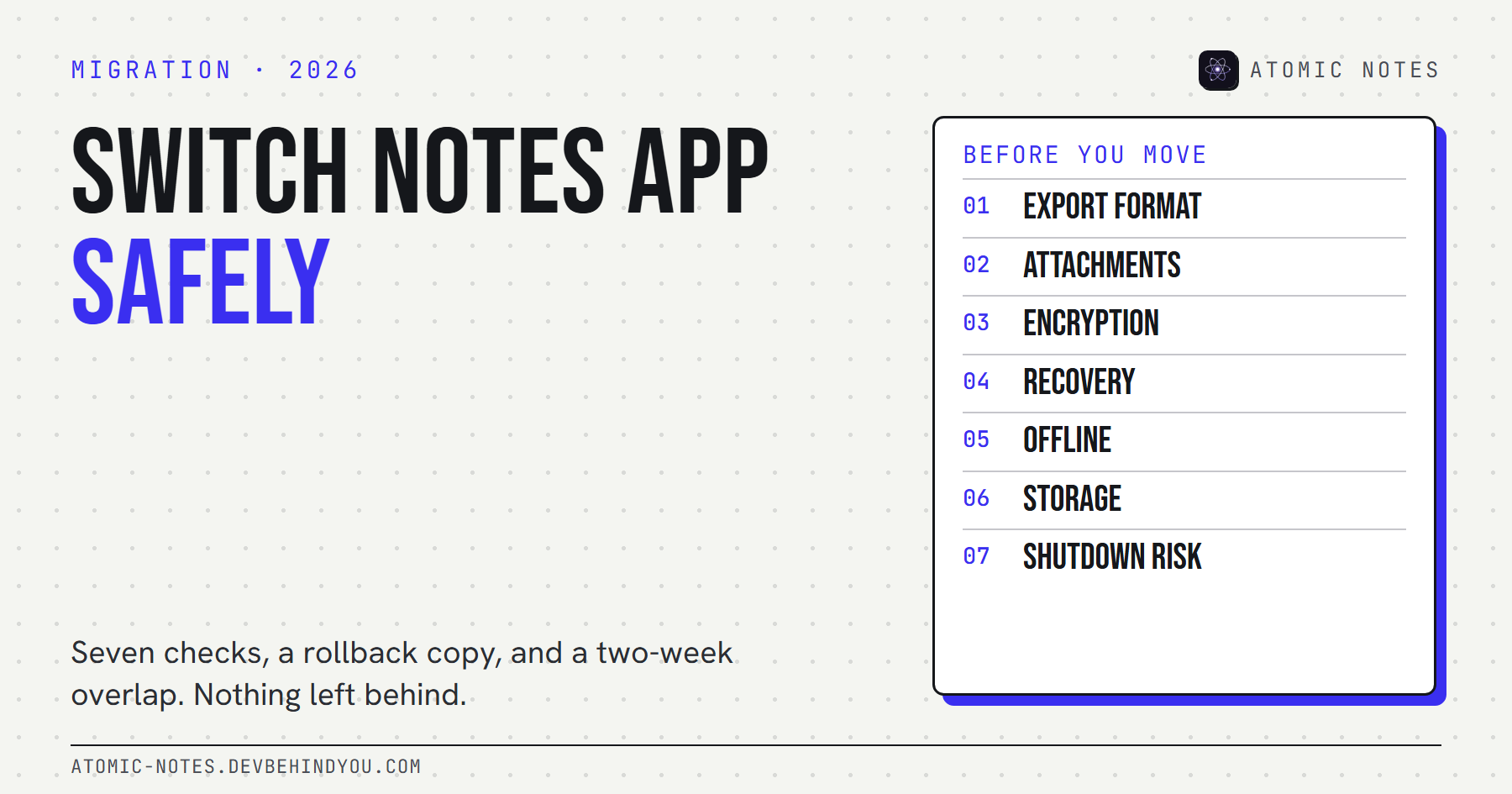
Before you switch notes app, check seven things: the export format, attachments, encryption, account recovery, offline access, where the new app stores notes, and what happens if it shuts down. Then move in order: export, keep an untouched rollback copy, import, compare note counts, and run both apps side by side for two weeks.
Switching notes apps feels like a weekend job. Export, import, done. Then a month later you go looking for a recipe, a scanned receipt, or a checklist from last spring, and it isn't there.
Most notes go missing during a move because nobody checked what the export left out. Attachments stay behind. Checklists turn into plain text. Encrypted notes come out as gibberish. Folder structure flattens.
So before you switch notes app, run seven checks, then follow a plan with a way back. I build Atomic Notes, and its own section near the end is blunt about how hard it is to move into and out of it today.
Why do notes get lost when you switch apps?
Because every app's export is a translation, and translations drop things. The new app imports what it understands and quietly skips the rest.
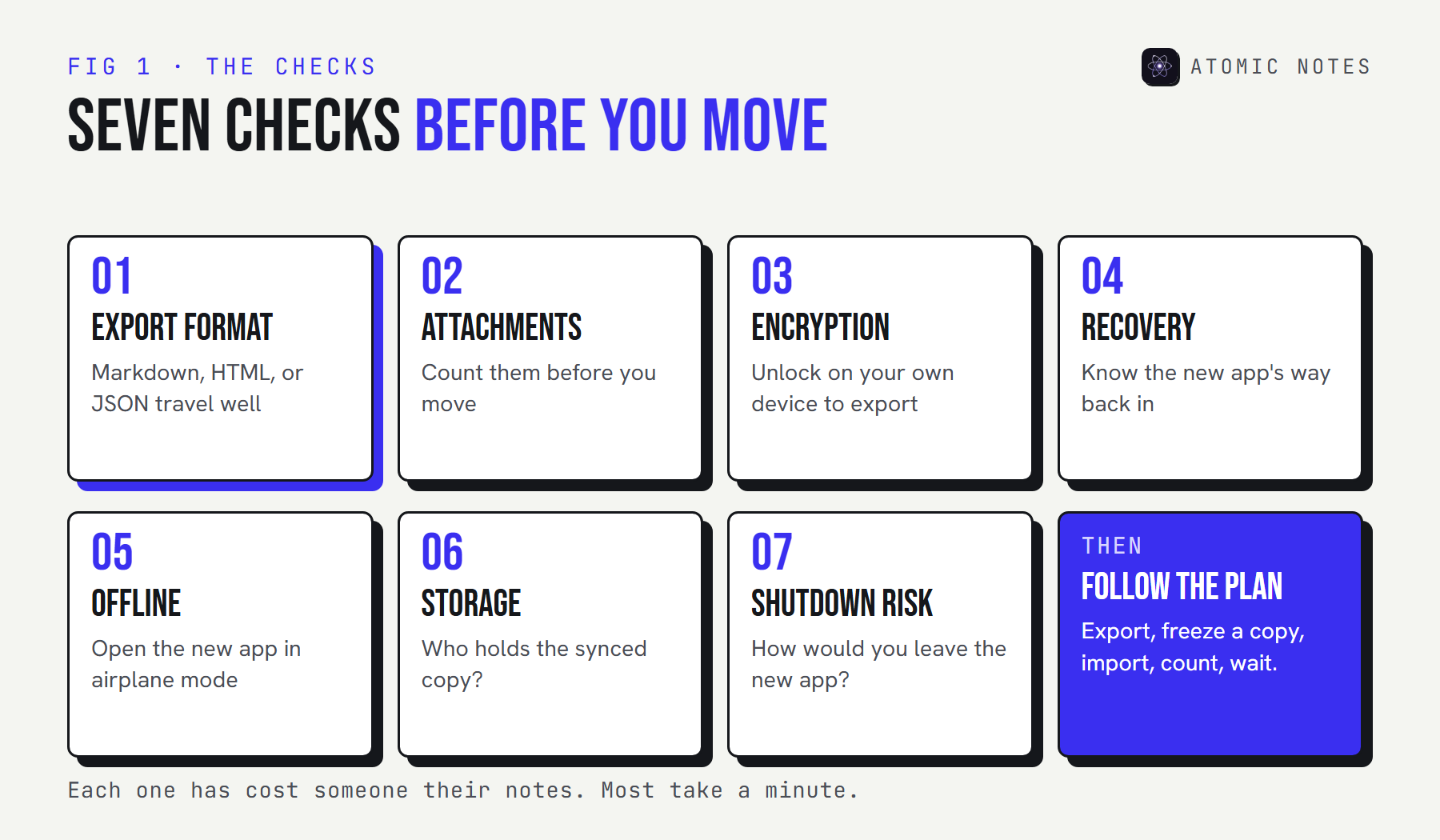
The common losses are predictable:
- Attachments. Images, PDFs, and audio often export as separate files the new app doesn't link back.
- Structure. Notebooks, tags, and nested folders flatten into one long list.
- Checklists. Ticked items can turn into plain text with no state.
- Dates. Imported notes often get today's date, which breaks sorting and search.
- Encrypted notes. They export as ciphertext, or not at all, unless you unlock them first.
None of these show up until you need the missing note. That's why the plan below ends with counting, not importing.
The 7 things to check before you switch notes app
Check the old app's way out and the new app's way out before you commit. The app you're joining today is the app you'll eventually leave.
Run through them for the move you're planning:
BEFORE YOU MOVE · 7 CHECKS
Are you ready to switch?
Answer for the move you're planning. Nothing is saved or sent.
- 01
The old app has a full export in a format like Markdown, HTML, or JSON.
- 02
I know how many attachments I have and where they'll go.
- 03
Encrypted notes are unlocked on my own device for the export.
- 04
I've written down the new app's recovery key or phrase on paper.
- 05
The new app opens and saves my notes in airplane mode.
- 06
I know where the new app's synced copy lives and who can read it.
- 07
I know how I'd get my notes out of the new app if it shut down.
0 / 7 7 left to answer
1. The export format
Plain text, Markdown, HTML, or JSON travel well. A proprietary file only the old app reads doesn't. Look for a full export, not a share-one-note option.
A good data export gives you every note in one go, in a documented format, with dates and tags. Markdown is the most portable for text. JSON keeps the most detail.
2. Attachments
Ask what happens to images, PDFs, and audio. Some exports include them in a folder. Some leave links that break the day your old account closes.
Count your attachments before you move. If the new app can't hold them, keep them in a plain folder next to your notes.
3. Encryption on the way out
End-to-end encrypted notes have to be decrypted somewhere to move. Do it on your own device, unlock the vault, export, and delete that plain copy when you're done.
This is secure data migration in one sentence: the readable copy should only ever exist on hardware you own, for as long as the move takes.
4. Account recovery in the new app
Know how you get back in before you put years of notes inside. A provider that can reset your password can also read your notes. One that can't will lose them if you lose the key.
Write down the recovery key or phrase the new app gives you, on paper, before the import.
5. Offline notes
Turn on airplane mode and open the new app. Offline notes that load from the device are a sign the app keeps a real copy with you, not just a cache.
My guide to notes apps that work without internet has a five-minute test you can run on any app.
6. The cloud storage provider
Where will the synced copy live, and who can read it? The company's servers, a cloud you already pay for, or a server you run yourself are three different trust decisions.
If you want local first note taking with a copy you own, my comparison of local first note taking apps sorts the options by exactly this.
7. Shutdown risk
Services end, and they don't always give much notice. Ask what you'd still have the day after an announcement.
Pocket is a recent example. Mozilla shut it down on July 8, 2025, moved it to export-only, and set October 8, 2025 as the date after which accounts and data would be permanently deleted. People who exported early lost nothing. People who missed the window lost everything.
How do popular apps export notes?
Every big notes app has an export, but each one leaves something out. Here's what you get from the apps people most often leave.
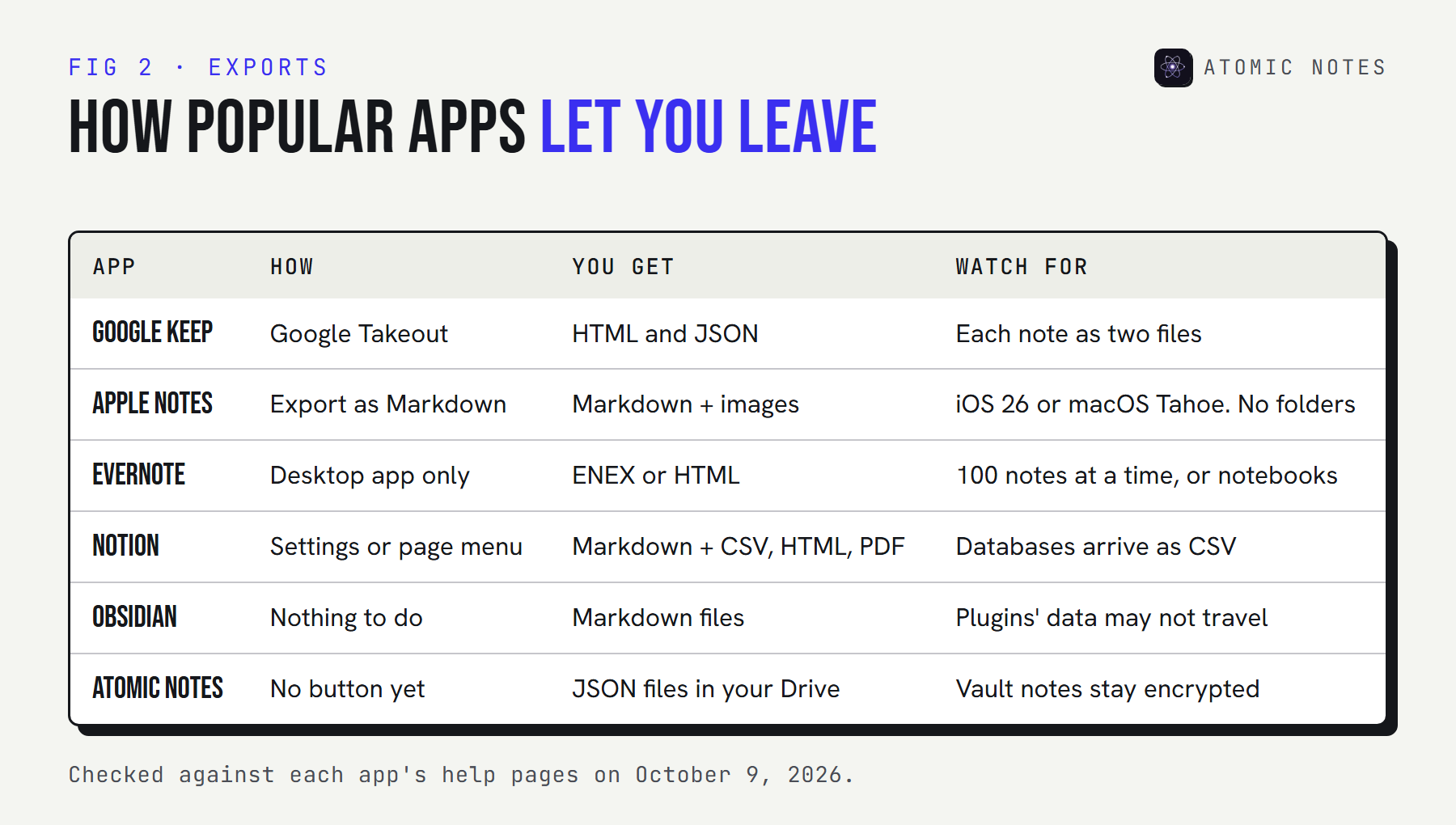
| App | How to export | What you get |
|---|---|---|
| Google Keep | Google Takeout | Each note as an HTML file and a JSON file, with attachments |
| Apple Notes | Export as Markdown (iOS 26, macOS Tahoe) | Markdown files with images, without folder structure |
| Evernote | Desktop app only, up to 100 notes at a time or whole notebooks | ENEX or HTML files |
| Notion | Settings or page menu | Markdown and CSV, HTML, or PDF |
| Obsidian | Nothing to export | Your vault is already a folder of Markdown files |
| Atomic Notes | No export button yet | One JSON file per note in your own Google Drive |
The export format decides how much work the import will be. Markdown and plain files move to almost anything. ENEX and Notion's CSV databases need an importer on the other side.
How do you migrate notes to a new app without losing anything?
Export, freeze a copy, import, count, then wait. The waiting is the part people skip, and it's the part that catches missing notes.
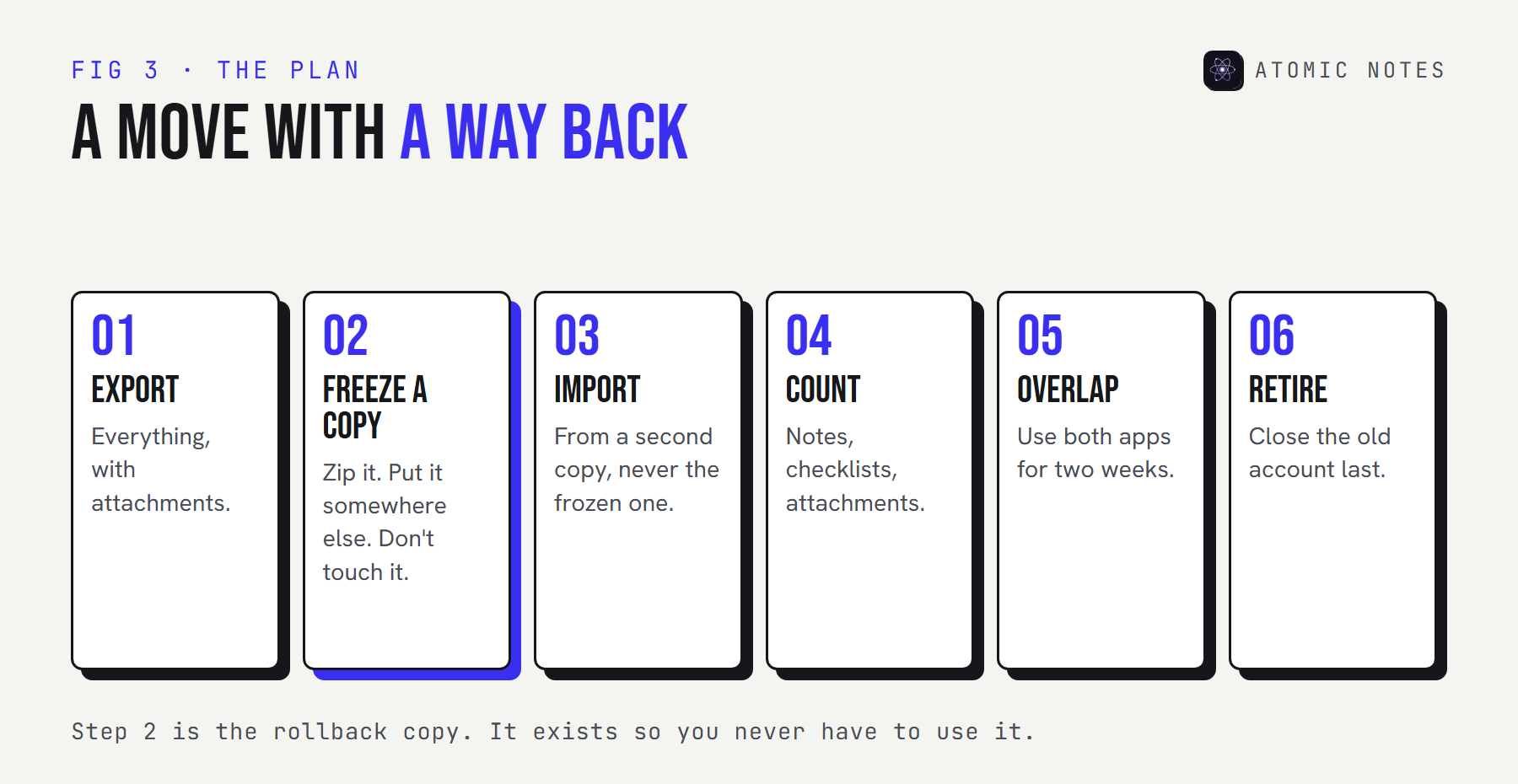
- Export everything from the old app, including attachments.
- Keep a rollback copy. Zip the export, put it on a USB drive or a second cloud, and don't touch it.
- Import into the new app from a separate copy, never from the rollback copy.
- Compare note counts. Count notes, checklists, and attachments before and after.
- Use both for two weeks. Search the new app for things you know exist.
- Retire the old account only when nothing has come up missing.
Count your notes with the checker below. It flags any gap:
STEP 4 · COUNT CHECK
Did everything make it across?
Type the counts from the old app and the new one. Any gap gets flagged.
| ITEM | OLD APP | NEW APP | RESULT |
|---|---|---|---|
| Notes | ... | ||
| Checklists | ... | ||
| Attachments | ... | ||
| Notebooks or folders | ... |
0 / 4Fill in a row to compare.
A higher count in the new app can mean duplicates or split notes. Check those too.
When you move notes to another app this way, a missing note shows up in step 4 or 5, while the old account still exists to recover it from.
What does a safe switch look like over time?
Give the old app a few weeks of overlap before you delete anything, however tempting it is to switch notes app in one evening. The rollback copy is your insurance after that.
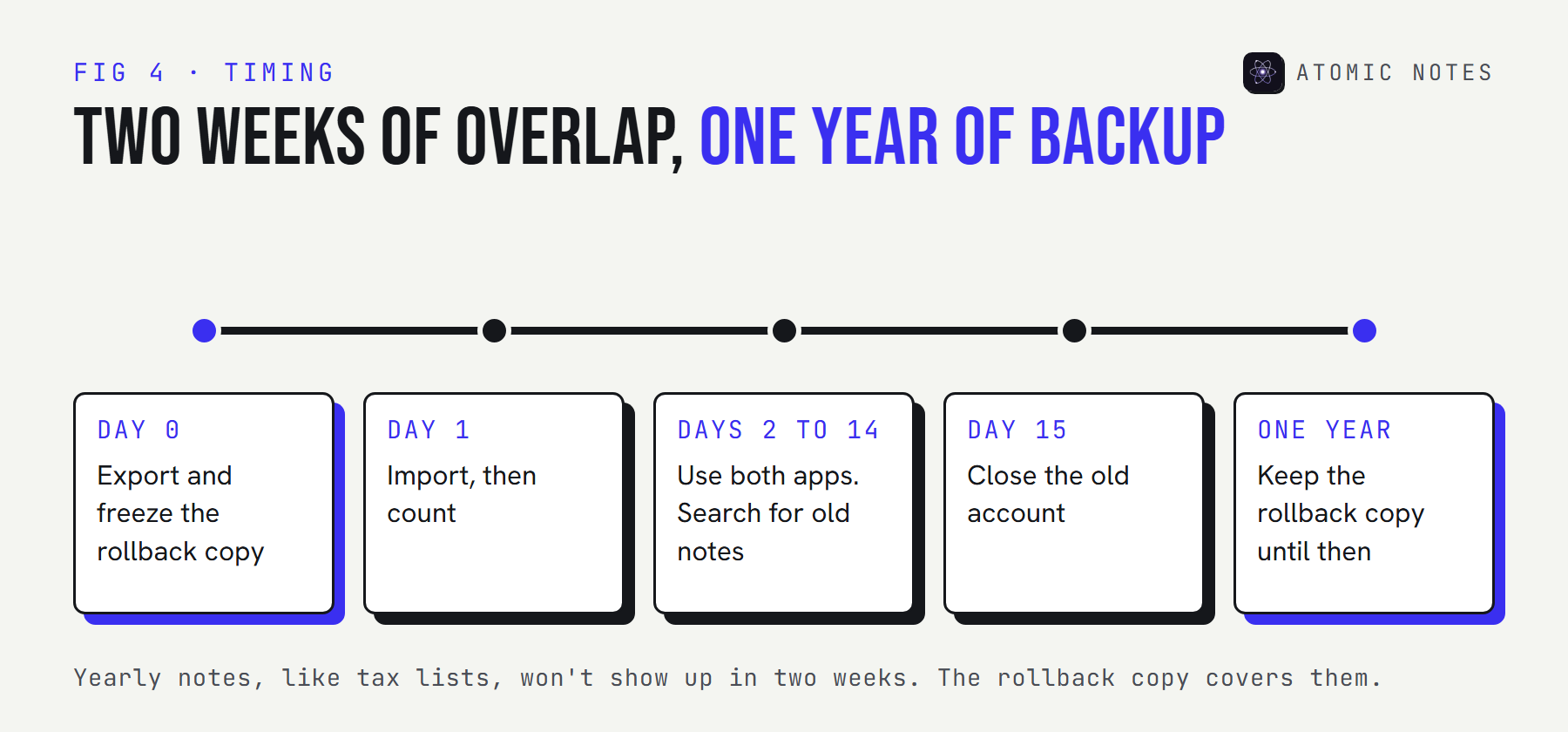
Two weeks is enough for most people to hit the notes they use weekly: a shopping list, a work log, a recipe. Notes you open once a year, like a tax checklist or a warranty receipt, won't come up in that window, which is why the rollback copy stays for a year.
Store that copy like any other sensitive file. If your old notes were end-to-end encrypted, the export is now plain text, so put it in an encrypted archive or on a drive you keep at home, not in a shared cloud folder.
When you switch notes app on a phone, also check the small things the export never carries: home screen widgets, reminders, share links you sent people, and any app lock you set. Rebuild those by hand in the new app on day one, so the first week feels normal and you don't drift back to the old one.
One last habit: write down where everything went. A short note in the new app, "moved from X on this date, rollback copy on the blue USB drive", saves real panic a year from now.
Can you switch to or from Atomic Notes?
Yes, but not with one button yet, and I'd rather you knew that before you start. Atomic Notes has no import tool and no export button today.
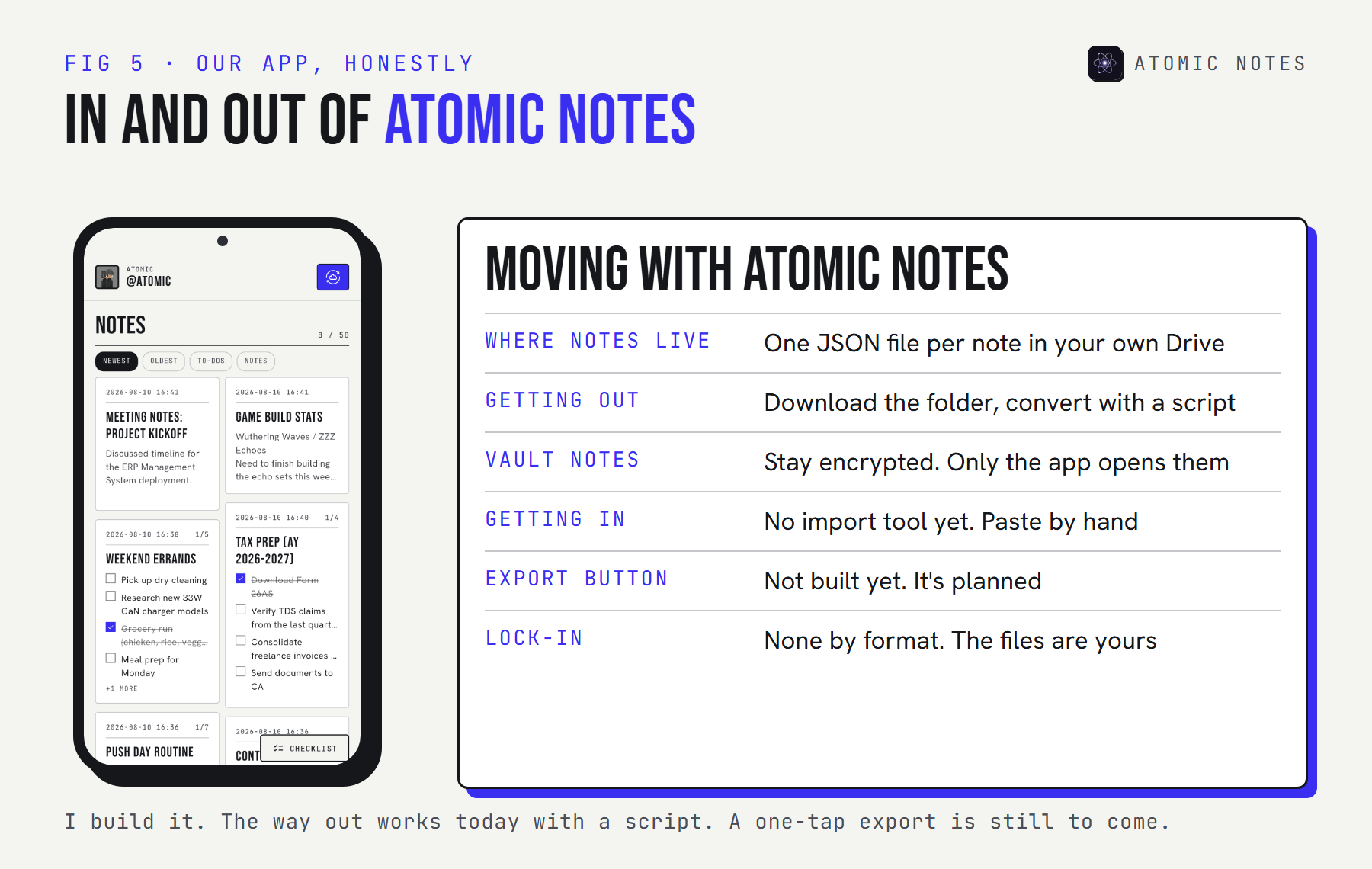
Getting notes in means typing or pasting them, one by one. Getting notes out is easier than it sounds, because every synced note is already a file in a My-Atomic-Notes folder in your own Google Drive. Download that folder, and this short script turns plain notes into Markdown files any app can import:
atomic_to_md.py · run next to the downloaded My-Atomic-Notes folder
import json, pathlib, re

src = pathlib.Path("My-Atomic-Notes")       # the folder you downloaded from Google Drive
out = pathlib.Path("markdown"); out.mkdir(exist_ok=True)
sealed = 0
for f in sorted(src.glob("*.atomic")):
    note = json.loads(f.read_text(encoding="utf-8"))
    if note.get("encV", 0) >= 1:            # vault note: ciphertext, only the app can open it
        sealed += 1
        continue
    title = note["title"] or note["id"]
    lines = [f"# {title}", ""]
    if note["kind"] == "todo":
        for i in note["items"]:             # older files may use t/d instead of text/done
            done, text = i.get("done", i.get("d")), i.get("text", i.get("t", ""))
            lines.append(f"- [{'x' if done else ' '}] {text}")
    else:
        lines.append(note["body"])
    name = re.sub(r'[\\/:*?"<>|]', "-", title)[:80]
    path = out / f"{name}.md"
    if path.exists():
        path = out / f"{name} {note['id'][:8]}.md"
    path.write_text("\n".join(lines) + "\n", encoding="utf-8")
print(f"Done. {sealed} vault notes skipped.")
Two honest limits. Vault notes are ciphertext in those files, so the script skips them, and only the app with your six-word phrase can open them. A real export button is planned, and this guide will be updated when it ships.
My take: the best time to plan your exit from a notes app is the day you join it. An app that makes leaving easy has nothing to hide, and I'm holding my own app to that standard.
FAQ
How do I switch notes app without losing notes?
Export everything, keep an untouched rollback copy somewhere else, import from a separate copy, and compare note and attachment counts. Then use both apps for two weeks before closing the old account, so anything missing still has somewhere to come from.
What is the best format to migrate notes to a new app?
Markdown for text, because almost every notes app imports it and any editor can open it. JSON keeps the most detail, such as dates and checklist state. Proprietary formats like ENEX need an importer that understands them.
How do I move notes to another app if they're encrypted?
Unlock them in the old app on your own device, export, import into the new app, then delete the plain export. Exports of locked end-to-end encrypted notes are usually unreadable anywhere else, so do this before you close the old account.
Do attachments survive a notes migration?
Often not completely. Some exports put attachments in a separate folder the new app doesn't link back to notes. Count them before and after, and keep the original attachment folder with your rollback copy.
What should I do if my notes app is shutting down?
Export immediately, not at the deadline. Shutdowns often move to export-only mode and then delete everything on a fixed date, as Pocket did in 2025. Keep the export in two places, then pick a new app using the seven checks above.
Can I export my notes from Atomic Notes?
There's no export button yet. Every synced note is a JSON file in your own Google Drive, so you can download the folder and convert plain notes to Markdown with a short script. Vault notes stay encrypted and need the app to open.
Keep reading
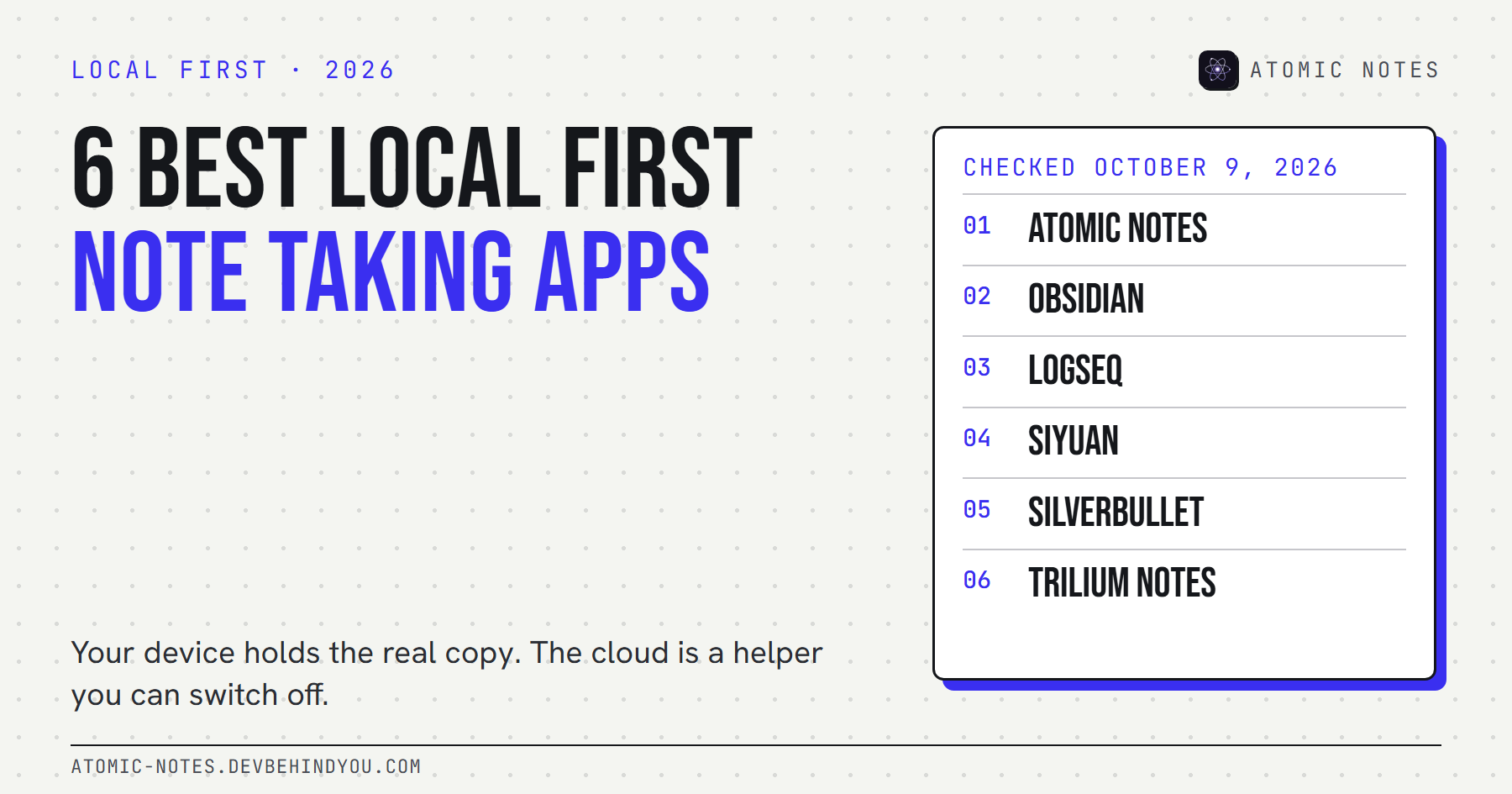
- 6 best local first note taking apps
- Notes app security: 10 privacy mistakes to fix
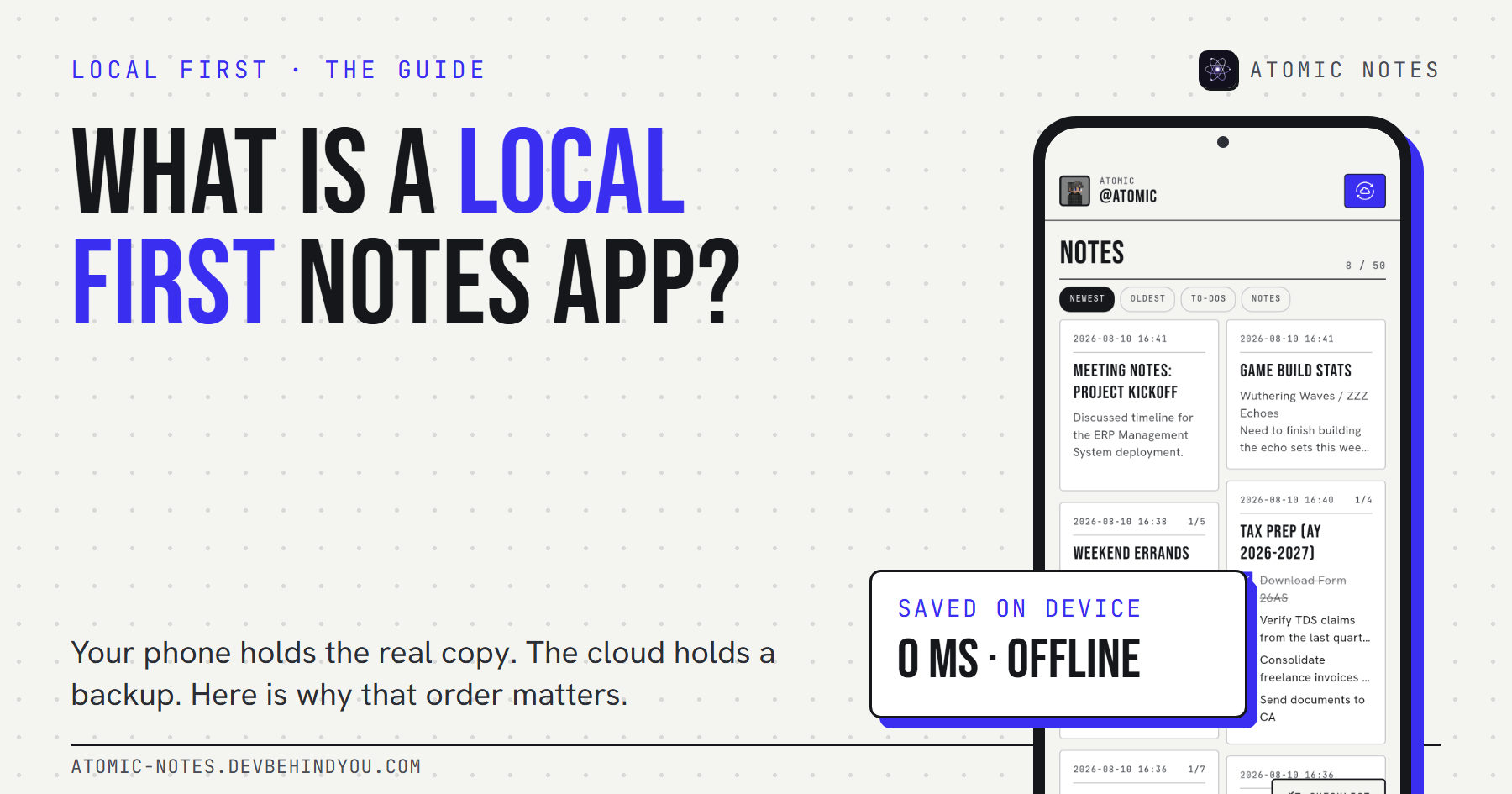
- What is a local first notes app?
Atomic Notes by DevBehindYou
Your notes live on your phone and in your own Google Drive as plain JSON files you can always download. No lock-in by format, no ads, and no AI. See how it works.
Sources
- Pocket is saying goodbye: what you need to know. Mozilla Support
- How to download your Google data. Google Account Help
- Import and export Markdown files in Apple Notes. MacRumors
- Export notes and notebooks as ENEX or HTML. Evernote Help
- Export your content. Notion Help
- Right to data portability, GDPR Article 20
- Atomic Notes source code. GitHub