 ATOMIC NOTES
Quick answer
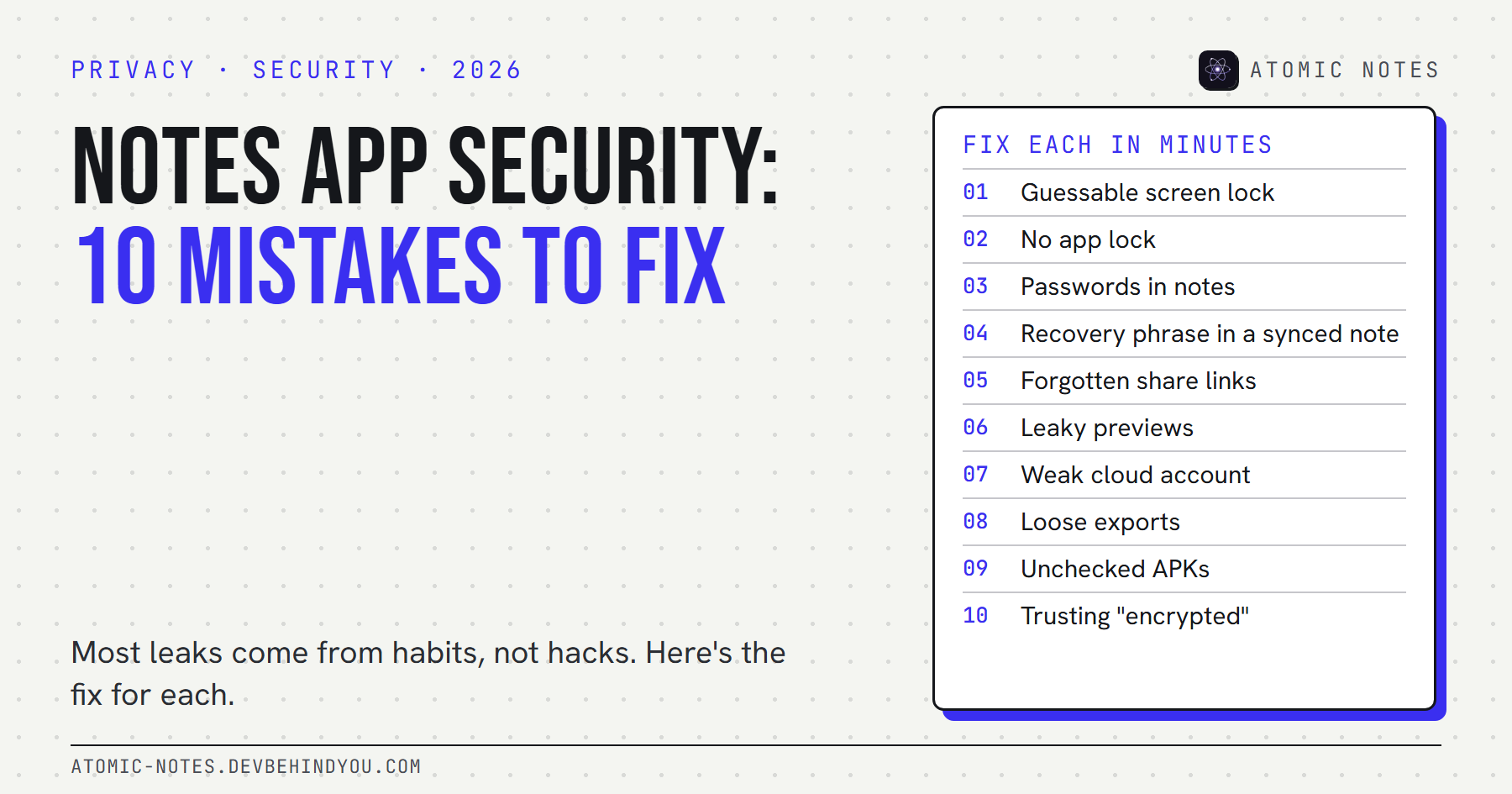
Notes app security breaks most often through habits, not hacks: a weak screen lock, no app lock, passwords and recovery phrases in plain notes, forgotten share links, previews that leak, an unprotected cloud account, loose exports, unchecked APKs, and trusting the word "encrypted". Each one has a fix that takes minutes.
Picture handing your phone to a friend to show a photo. Your notes app is still open in the background. One swipe, and they're looking at your bank's security questions and answers.
Nobody hacked anything. That's the uncomfortable truth about notes app security: the weak points are usually ours, not the app's. The best encryption in the world doesn't help if the phone is unlocked and the note is right there.
So this guide is about habits. Ten notes app privacy mistakes that I see constantly, why each one matters, and the fix. I build Atomic Notes, and I'll point out where it helps and where it can't.
Why does notes app security fail so often?
Because a notes app feels private, so we treat it like a safe. That feeling causes more notes app privacy mistakes than any bug. It's usually closer to a desk drawer: handy, unlocked, and often copied to a cloud account you set up years ago.
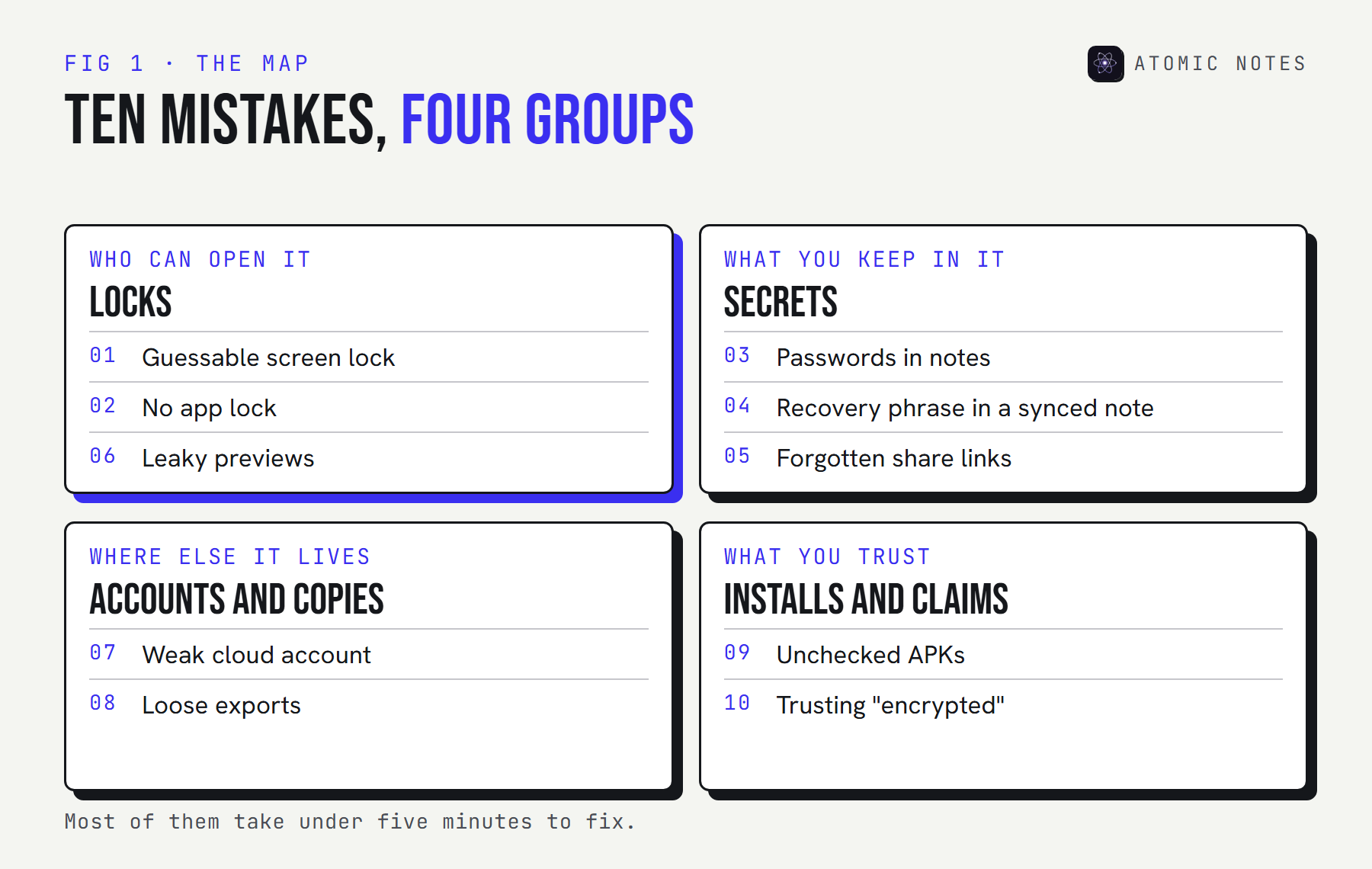
The mistakes fall into four groups:
- Locks (1, 2, 6): who can open the phone, the app, and the screen preview.
- Secrets (3, 4, 5): what you store, and who you've shared it with.
- Accounts and copies (7, 8): the cloud account behind your notes, and the exports you leave around.
- Installs and claims (9, 10): where the app came from, and what its security claims really mean.
Before you read on, run the quick audit. It takes a minute and scores your own setup:
SELF-AUDIT · 10 HABITS, 1 MINUTE
How safe are your notes, really?
Answer for your own phone and notes app. Nothing is saved or sent.
- 01
My phone's screen lock is a six-digit PIN or longer, or a passphrase.
- 02
My notes app has its own app lock turned on.
- 03
No passwords sit in my ordinary notes.
- 04
No recovery phrase or backup code is saved in a note that syncs.
- 05
I know every shared link to my notes, and none is stale.
- 06
My notes don't show in widgets, screenshots, or the recent apps preview.
- 07
The cloud account behind my notes has a unique password and two-step verification.
- 08
No old exports of my notes are lying around in Downloads, email, or shared folders.
- 09
I installed my notes app from an app store or the developer's official release page.
- 10
I know who holds the encryption key for my synced notes.
0 / 10 10 left to answer
If you'd like to judge the app itself rather than your habits, my nine red flags for notes app privacy covers that side.
Mistake 1: A screen lock anyone can guess
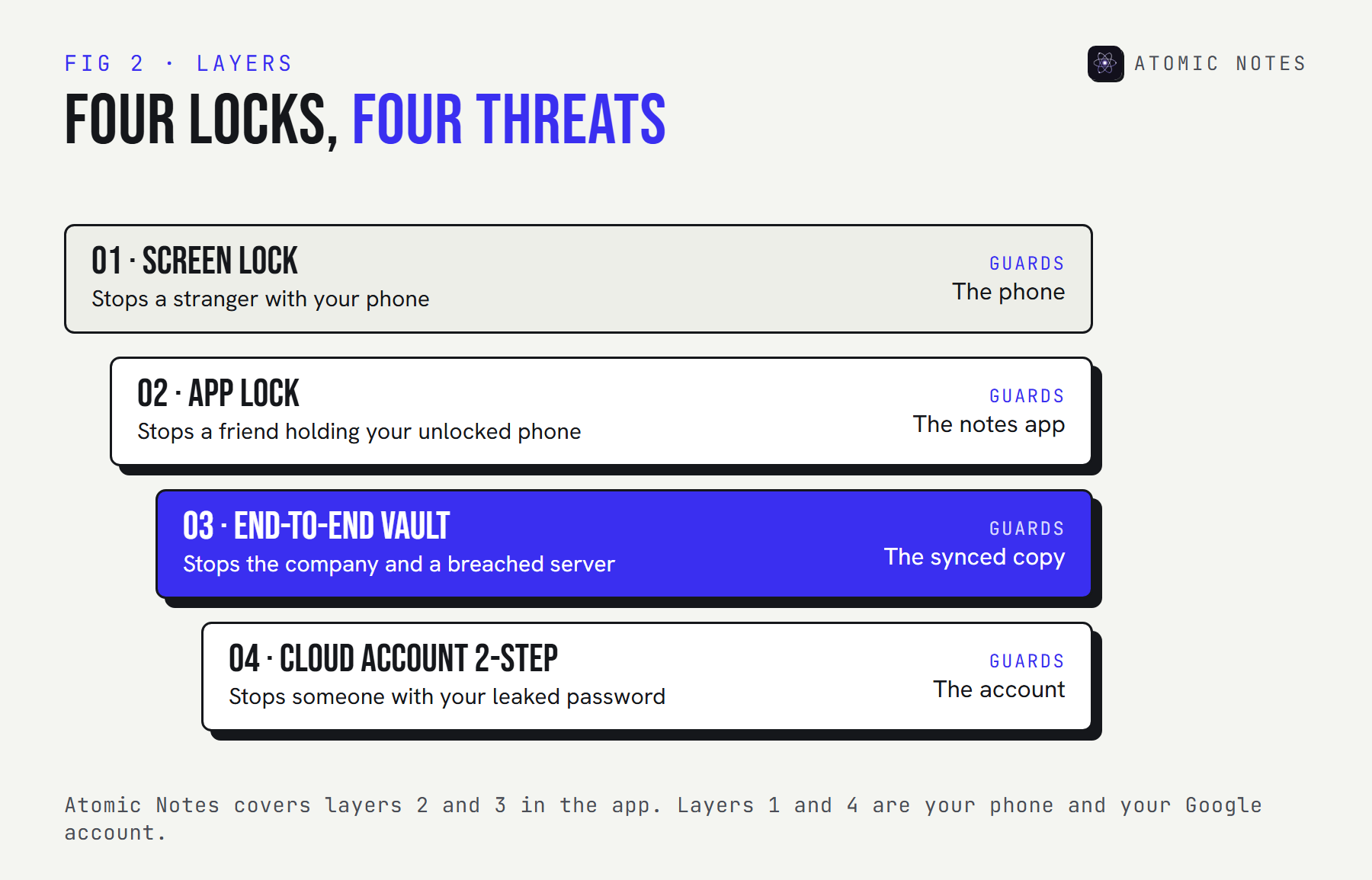
Your screen lock is the front door to every note on the phone, so notes app security starts there. A four-digit PIN like 1234, a simple pattern, or no lock at all means anyone holding the phone holds your notes.
Smudge marks give patterns away, and people pick predictable PINs. A six-digit PIN or a real passphrase raises the bar a lot, and it also protects your phone's own storage encryption, which is tied to that lock.
Fix: use a six-digit PIN or longer, turn off pattern visibility, and set the phone to lock after 30 seconds.
Mistake 2: No app lock on the notes app
A screen lock only helps until you unlock the phone and hand it over. An app lock adds a second check right at the notes app, so a borrowed phone doesn't mean borrowed notes.
This is the mistake from the scene above. Plenty of notes apps offer a fingerprint or face lock, and it's usually off by default.
Fix: turn on the app lock in your notes app. It's the cheapest notes app security upgrade there is. In Atomic Notes, it's under Security as biometric unlock, and you can add two-step verification with an authenticator app as a second gate.
Mistake 3: Passwords in ordinary notes
A note titled "logins" is the first thing anyone looks for. A plain note can't warn you about a breach, can't fill passwords into the right site only, and is often stored readable by the provider.
Each login you add makes that note a bigger prize, and makes one stolen phone or one breached cloud account more costly. CISA's advice is short: use a password manager, and let it generate and remember unique passwords.
Fix: move passwords into a password manager. If a note must hold something sensitive, put it behind end to end encryption. My guide to storing passwords in a notes app covers this one in depth.
Mistake 4: A recovery phrase in a note that syncs
A recovery phrase is a master key. Crypto wallet seed words, two-factor backup codes, and encryption vault phrases all unlock everything behind them.
Recovery phrase safety works best offline. A phrase saved in a synced note now lives on your phone, in a cloud, and in every backup of both. That's at least three places an attacker can find it.
Atomic Notes shows its six-word vault phrase once, asks you to write it down, and never sends it anywhere. That's on purpose.
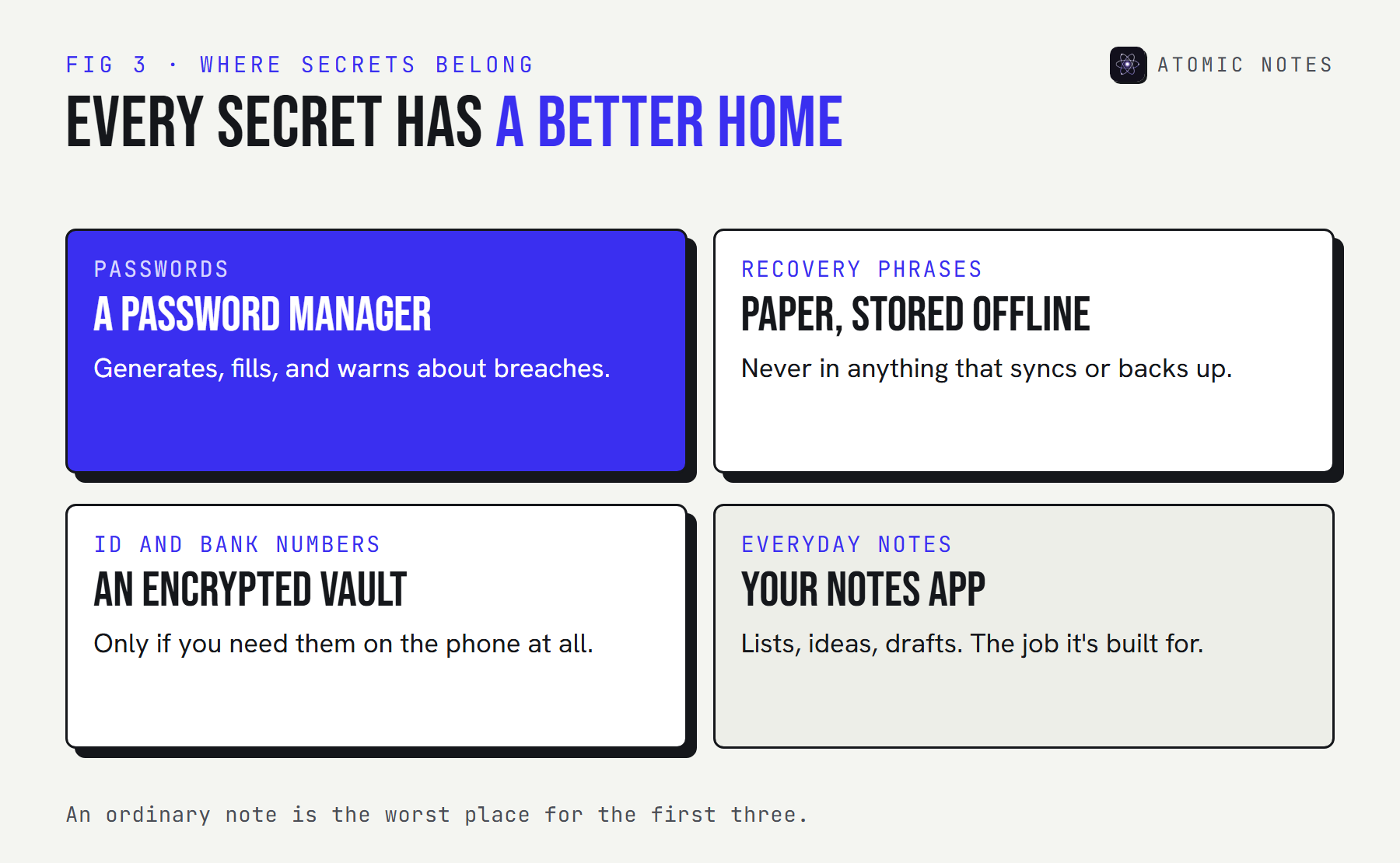
Fix: write recovery phrases on paper and store them somewhere safe and offline. Never photograph them.
Mistake 5: Share links you forgot about
A shared note link usually works for anyone who has it, for as long as you leave it on. Shared notes outlive the reason you shared them.
That grocery list you shared with a roommate three years ago may still be live, and now it's also where you keep the door code. Some apps keep public links active until you revoke them by hand.
Fix: open your notes app's sharing settings and revoke every link you don't need today. Atomic Notes has no share links at all, so there's nothing to forget there, but check every other app you use.
Mistake 6: Previews that leak your notes
Your notes can show up where you never opened them. The recent apps switcher keeps a picture of the last screen. Widgets show note text on the home screen. Screenshots copy notes into your photo library and its cloud backup.
None of this needs a hack. Anyone glancing at your phone, or anyone with access to your photo backup, sees it.
Fix: remove note widgets from the home screen if others use your phone. Turn on a no-screenshots mode if your app has one. In Atomic Notes, it also hides the app's preview in the recent apps switcher.
Mistake 7: A weak cloud account behind your notes
Your synced notes are only as safe as the account they sync to. If that account reuses a password from a breached site, cloud notes privacy is gone the moment someone tries it.
OWASP calls this credential stuffing: attackers replay leaked email and password pairs on other sites. Two-step verification stops most of these attempts, and it's the notes app security step people skip most. For Atomic Notes, that account is your Google account, because your notes sync to your own Drive, so its security is your notes app security.
Fix: give your cloud account a unique password and turn on two-step verification, ideally with a passkey or an authenticator app.
Mistake 8: Exports and backups left lying around
An export is a full copy of your notes, usually unencrypted. People export once, then leave the file in Downloads, a shared folder, or an email to themselves.
Data ownership means you can take your notes with you. It also means you're now responsible for that copy. A cloud backup you set up and forgot can be the least protected copy you have.
Fix: search your phone and cloud storage for old exports. Delete the ones you don't need, and keep the rest in one encrypted place.
Mistake 9: Installing an APK you didn't check
A modified app can look identical to the real one. APK security comes down to two checks: where the file came from, and whether it matches what the developer published.
Atomic Notes ships its signed APKs only on GitHub Releases, with the file checksums and the signing certificate in the release notes. Here's how to check a download on a computer with the Android build tools installed:
Terminal · verify an Atomic Notes 2.03.5 download
# 1. The file's fingerprint must match the release notes
sha256sum atomic-notes-2.03.5-arm64-v8a.apk
# 7ae44e050a0e62edc0b2162d26314675b8cd12fc6a43ab926c9ce4ced40ce0d9

# 2. The signing certificate must match too
apksigner verify --print-certs atomic-notes-2.03.5-arm64-v8a.apk
# Signer #1 certificate SHA-256 digest:
# cc24ae5ce1dca50fcd5e5c4c252d69e4965c55a975bd0e4739e8938fad9bebeb
No computer? Check the fingerprint right here. The file never leaves your browser:
TRY IT · CHECK A DOWNLOAD
Is this file the real one?
Pick an APK or any other file. Your browser computes its SHA-256 fingerprint. Nothing is uploaded.
SHA-256
No file picked yet.
A matching fingerprint proves the file wasn't changed. Check the signing certificate with apksigner too.
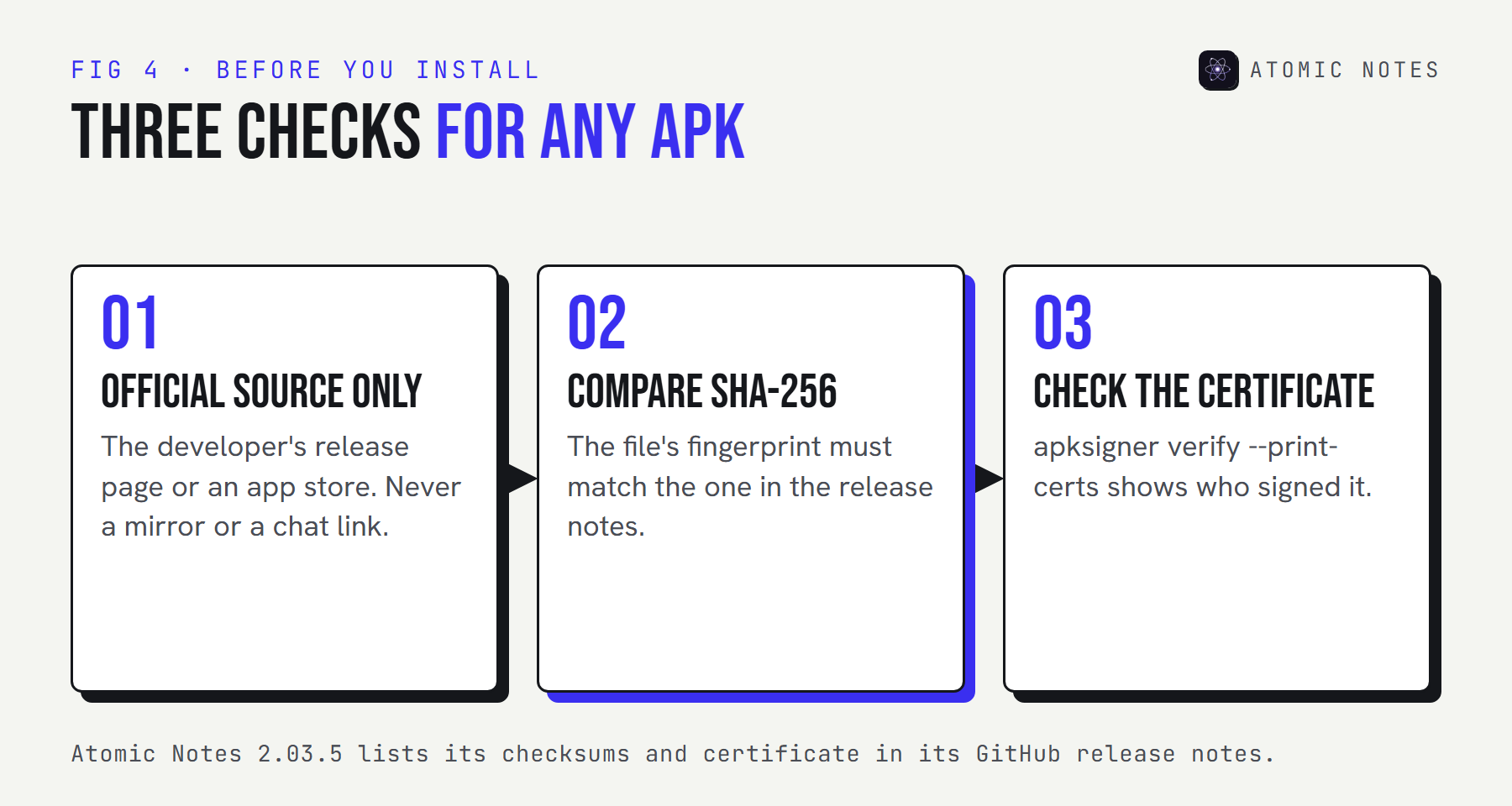
Fix: install only from the official source, and compare the fingerprint before you tap install. An update signed with a different certificate won't install over the real app, which is Android protecting you.
Mistake 10: Trusting the word "encrypted"
"Encrypted" can mean the trip over HTTPS, the company's disks, or your own phone. Only end to end encryption keeps the company itself out of your notes.
This mistake undoes the other nine in a quiet way, and it's the one that makes note taking privacy feel solved when it isn't: you assume the cloud copy is sealed, so you store things there you'd never write on a postcard. Then you learn the provider holds the key.
Fix: ask who holds the key. If the answer isn't "only you", treat the cloud copy as readable. My guide to encrypted notes and end to end encryption shows the difference with a live demo, and my comparison of end-to-end encrypted notes apps shows which apps hold up.
How do you keep note taking privacy for good?
Make the fixes into a short routine. Note taking privacy isn't a setting you flip once, and notes app security drifts the moment you stop checking. Apps update, accounts age, and old share links pile up.
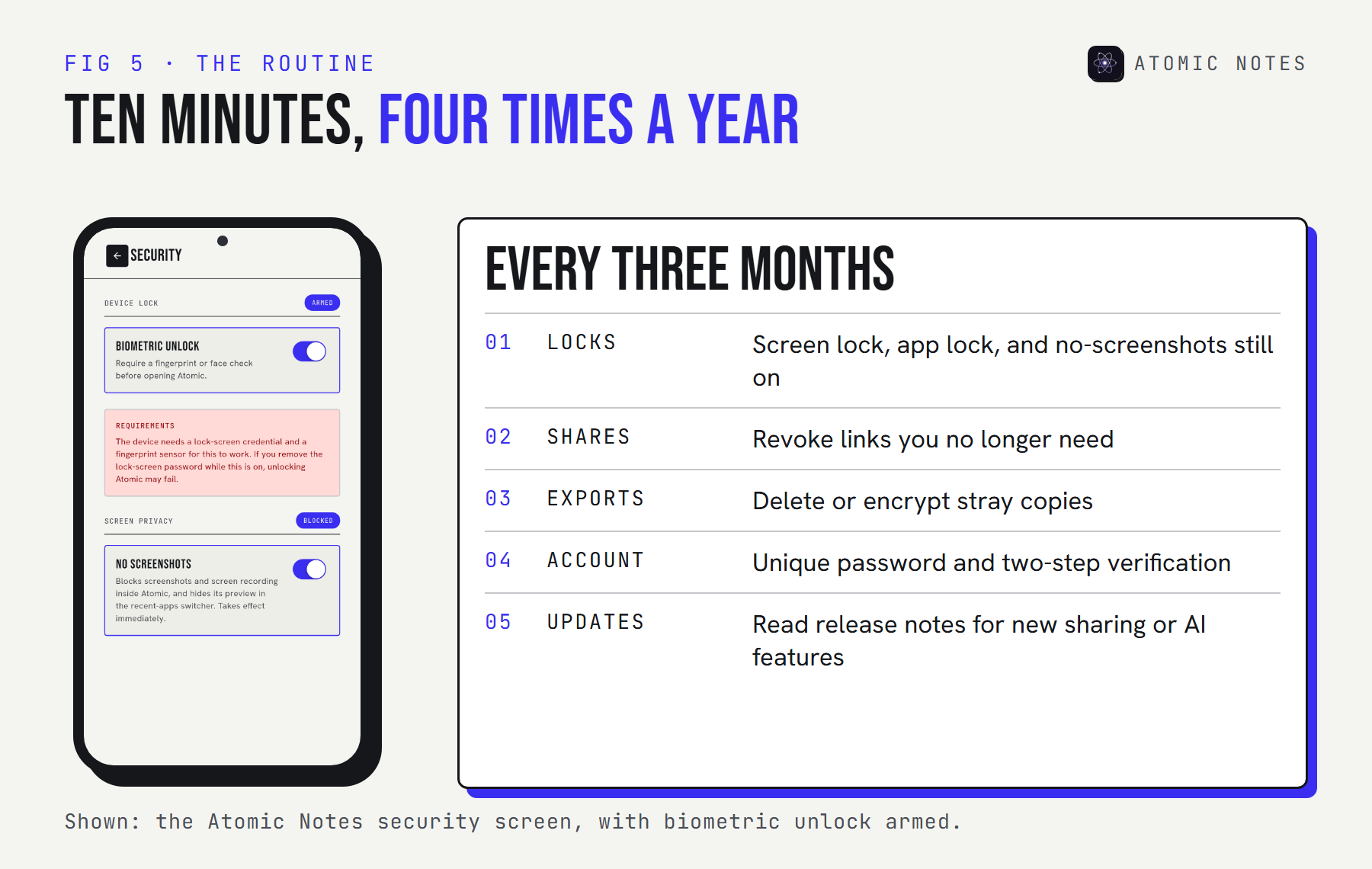
Here's what Atomic Notes does about each group, and where you still have work to do:
| Mistake group | What Atomic Notes does | What's still on you |
|---|---|---|
| Locks | Biometric unlock, two-step verification, no-screenshots mode | Your phone's screen lock |
| Secrets | Optional end-to-end vault, phrase shown once, no share links | Keeping passwords and phrases out of notes |
| Accounts and copies | Notes sync to your own Google Drive | Your Google account's password and two-step verification |
| Installs and claims | Signed APKs with published checksums, public code | Checking the download |
My take: most notes app privacy mistakes come from treating one tool as three. A notes app is for thinking. A password manager is for secrets. Paper is for recovery phrases. Keep them separate and your notes app security mostly takes care of itself.
FAQ
What is the biggest notes app security mistake?
Keeping passwords and recovery phrases in ordinary notes. One unlocked phone or one breached cloud account then exposes every login at once. Move passwords to a password manager and keep recovery phrases on paper, offline.
Is it safe to keep private notes on my phone?
Yes, with three habits: a strong screen lock, an app lock on the notes app, and end-to-end encryption for anything synced. Phones encrypt their own storage when locked, so the lock you choose does most of the work.
How do I check an APK before installing it?
Download it only from the developer's official release page. Compare its SHA-256 fingerprint with the one the developer published, and check the signing certificate with apksigner. If either doesn't match, delete the file.
Do notes app privacy mistakes matter if I have nothing to hide?
Most people's notes hold more than they think: addresses, health notes, door codes, and account hints. Those help scammers even when they seem boring. Fixing the common mistakes takes minutes and protects people you've written about, too.
How often should I review my note taking privacy?
Every three months, and after any big app update. Check your locks, revoke old share links, delete stray exports, confirm two-step verification on your cloud account, and read release notes for new AI or sharing features.
Does Atomic Notes protect me from these mistakes?
From some of them. It offers an app lock, two-step verification, a no-screenshots mode, an optional vault, and signed APKs with published checksums. Your screen lock, your Google account, and what you choose to write down are still up to you.
Keep reading
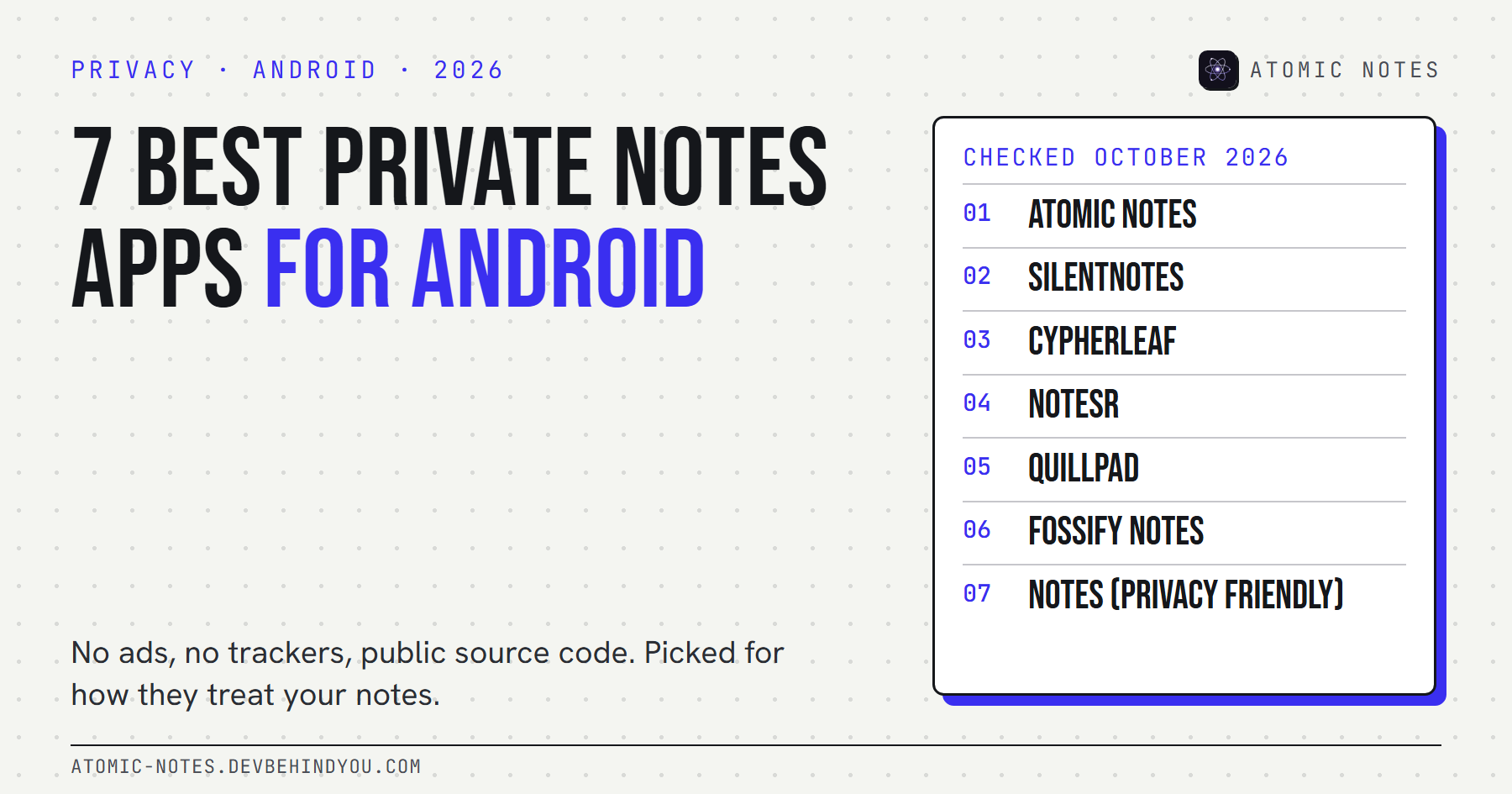
- Notes app privacy: 9 red flags to check
- Encrypted notes explained: T2T vs end to end encryption
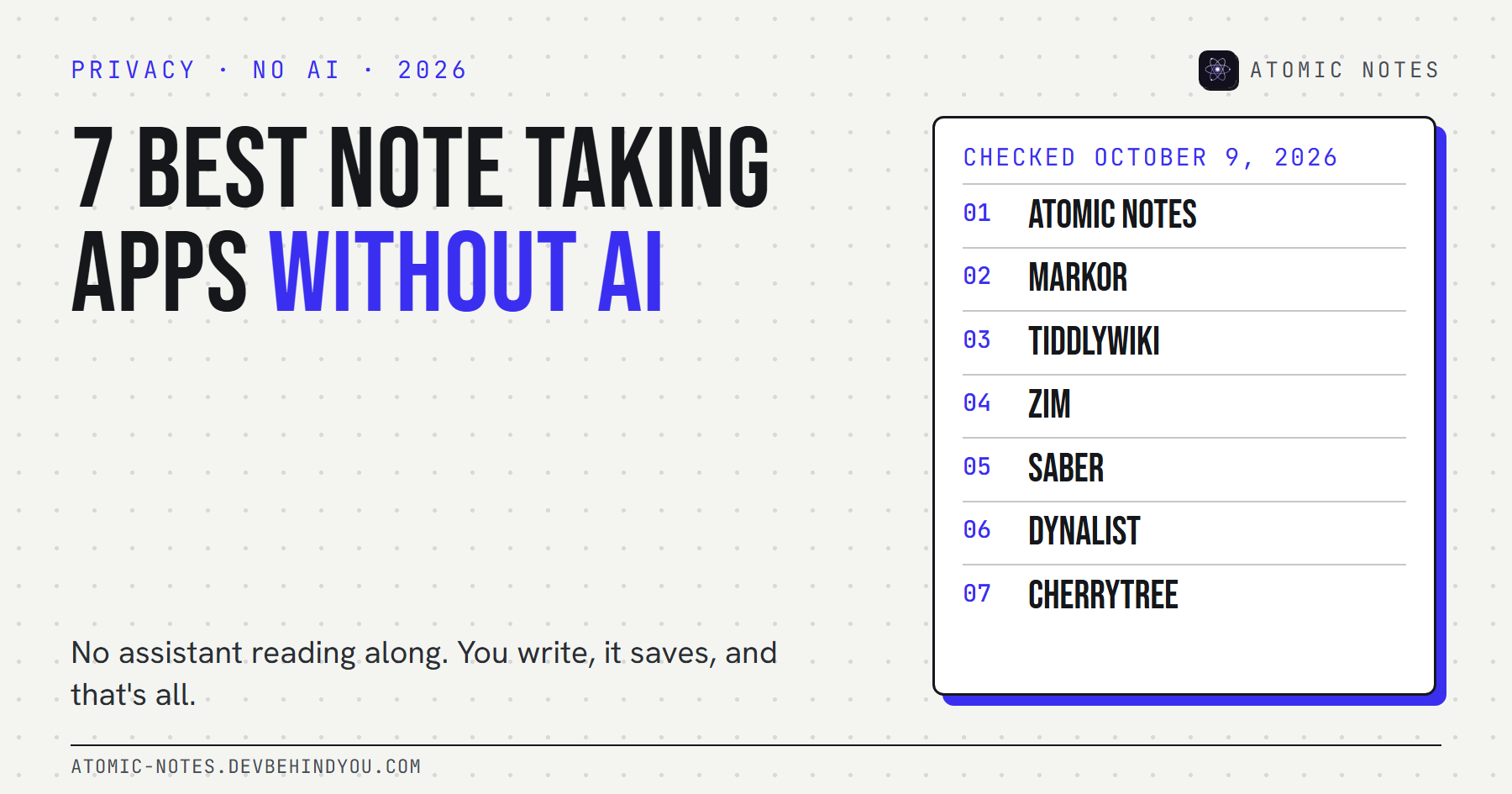
- 5 best end to end encrypted notes apps
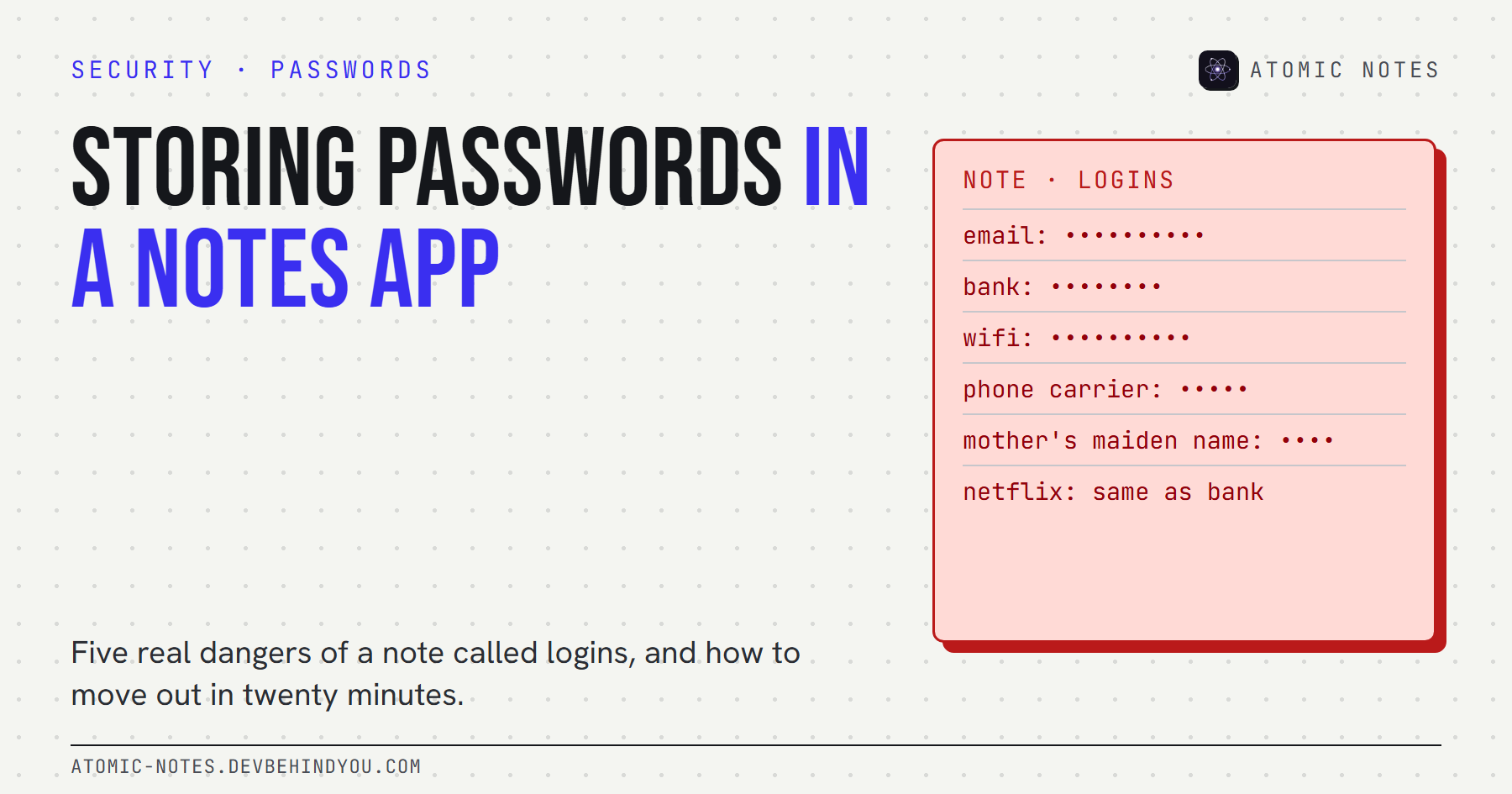
- Storing passwords in a notes app: 5 real dangers
Atomic Notes by DevBehindYou
Biometric unlock, two-step verification, a no-screenshots mode, and an optional end-to-end vault, in a notes app that keeps your notes on your phone and in your own Google Drive. Look around.